
By AlonLearn Team
From video to e-learning: full tracking in AlonLearn
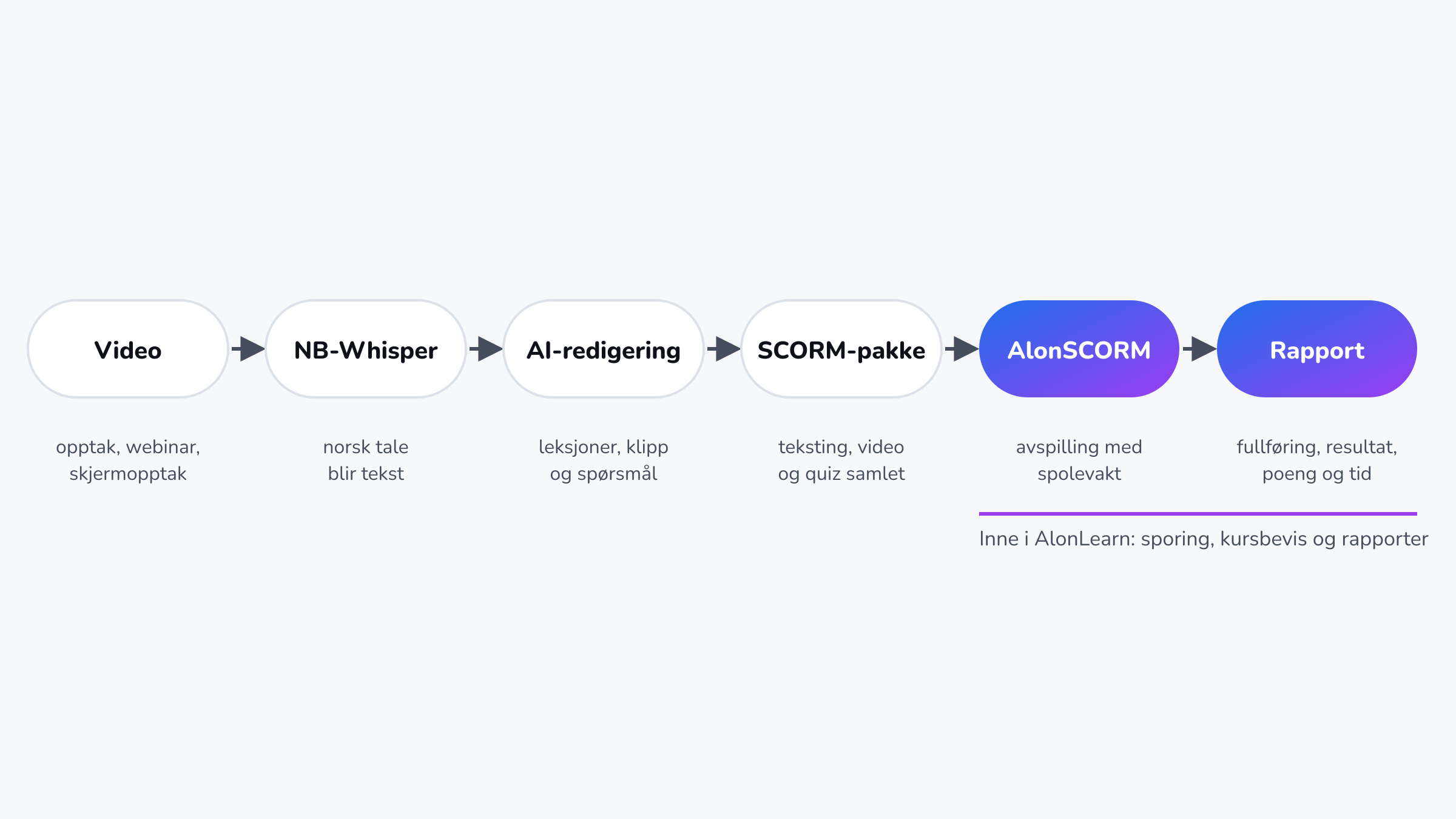
Webinars and recordings become e-learning with NB-Whisper and AI. The package goes straight into AlonSCORM, tracking completion, success, score and time.
e-learningSCORM
From the end of November 2026, AlonLearn gets its own branding page in the settings. As an administrator, you can make the platform your own: logo, colours, login page and how course links look when they are shared. This article walks through the settings one by one, with tips on what gives the best result.
The whole flow in under a minute.
Open the settings in the administration and choose Branding. Every change is saved as you go, and you will see “All changes saved” at the bottom of the page. If you change your mind, you can always click Reset to default.
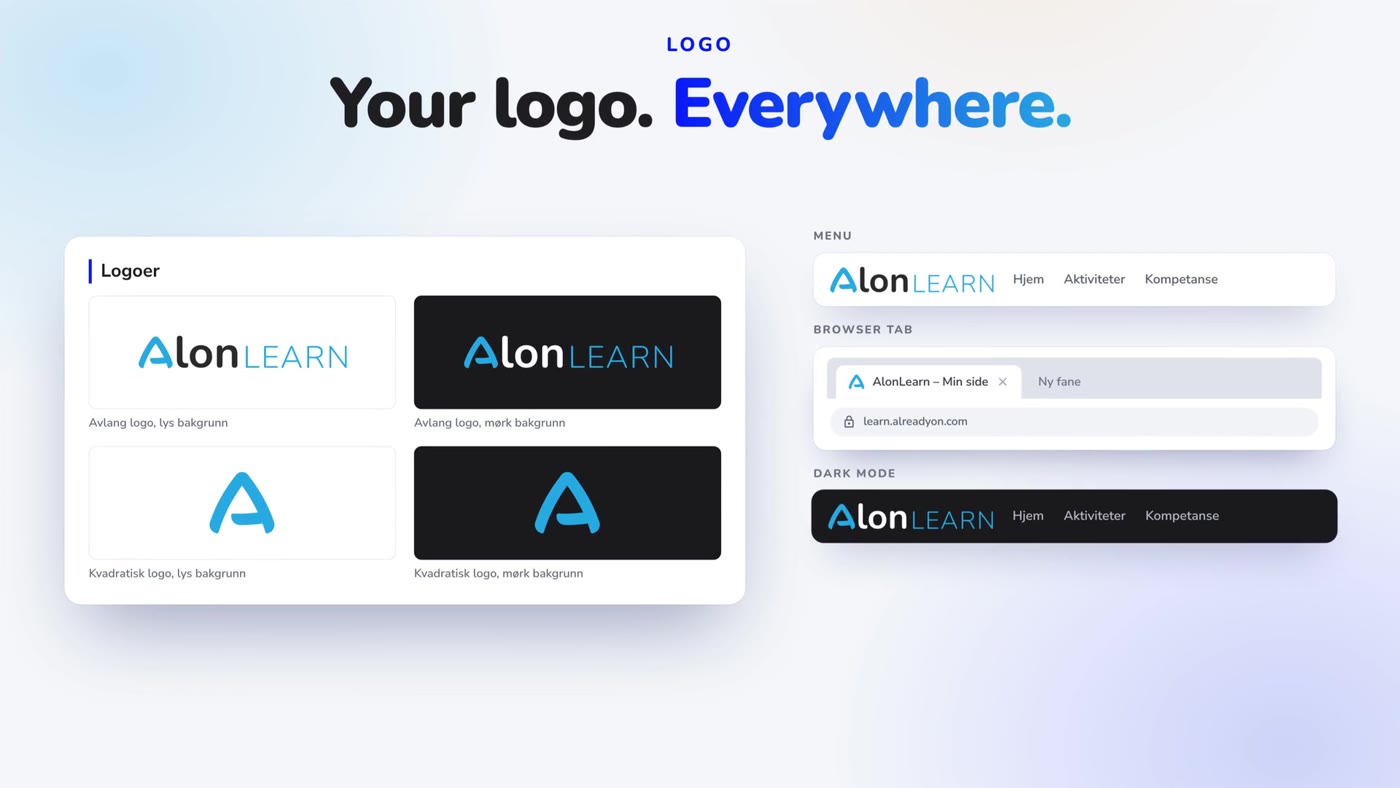
AlonLearn uses four variants, so your logo looks right everywhere:
Tip: Upload SVG or PNG with a transparent background, up to 2 MB. Transparent margins around the logo are removed automatically, so there is no need to crop it first.
The favicon is the small icon in the browser tab, and the icon on the home screen when someone saves the page on their phone. Use SVG or PNG of at least 180 × 180 pixels. A simple symbol on a transparent background is easiest to recognise at 16 pixels. The preview shows the icon at both 16 and 32 pixels, on light and dark tabs.
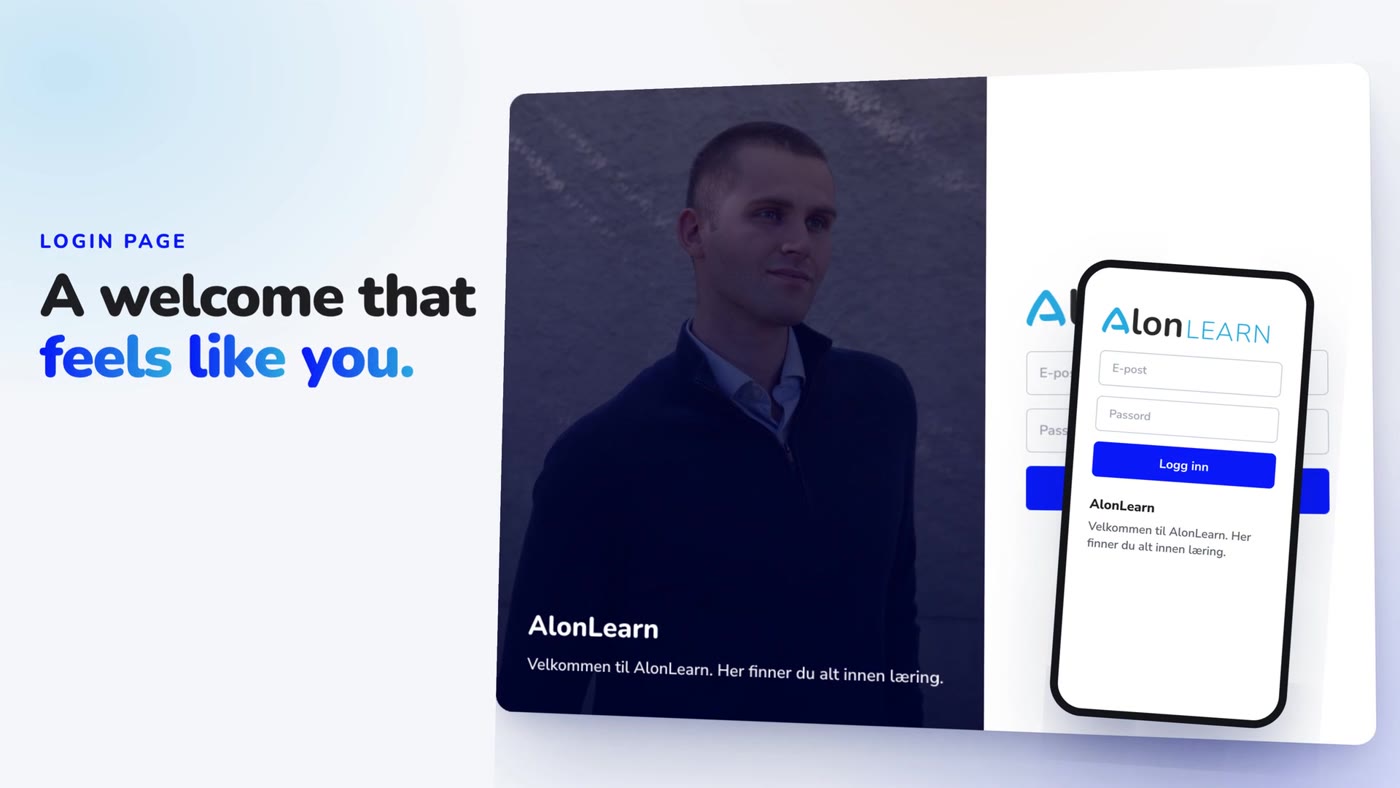
Here you set a background image and a welcome text. On desktop they appear in the panel next to the login form. On mobile, only the text is shown, below the form.
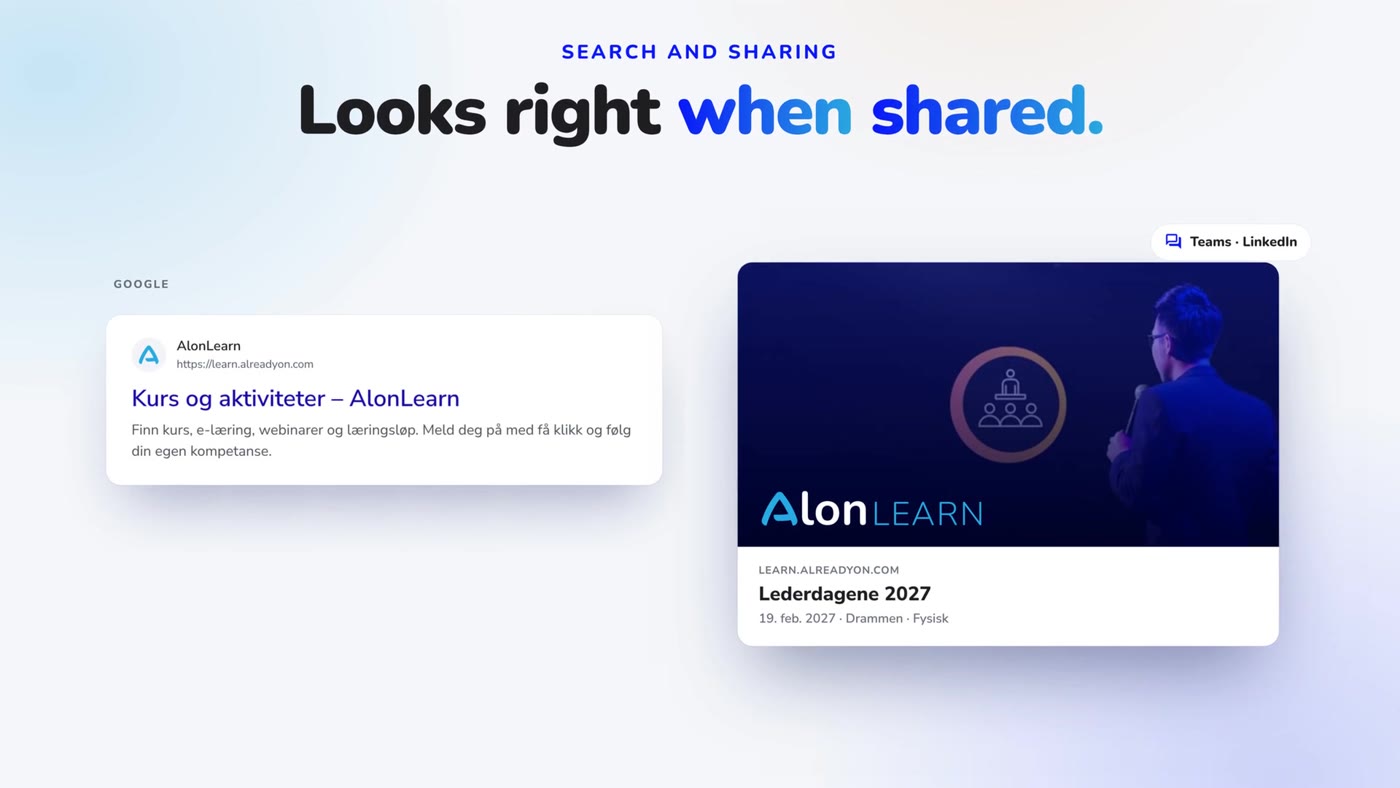
This section decides what Google shows for your public course overview, and how a shared link looks in Teams, LinkedIn and Facebook.
Each course page uses its own name and short description. Where those are missing, it falls back on the description and image you set here. If the platform should not appear in search results, turn on Hide from search engines.
Choose what someone who is not logged in sees when they open your address: the login, or the activity catalogue, where visitors can find and sign up for activities before they log in. You can also choose whether the “Log in” button is shown in the catalogue.
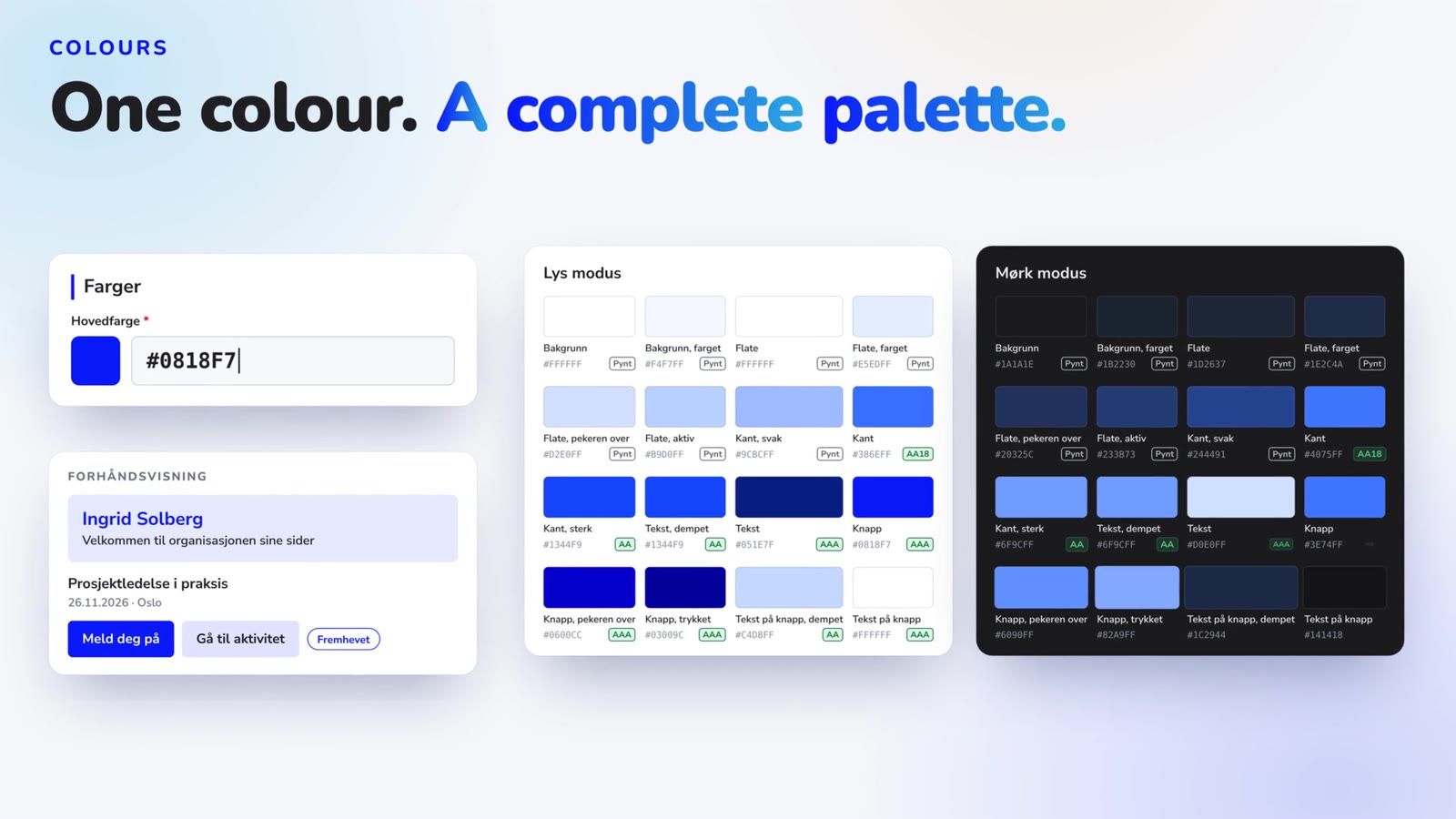
You choose one main colour. It is used on buttons, selected items and links in the menu. Colour 2 is optional and only used for decoration, never behind text.
From the main colour, AlonLearn builds a complete palette: backgrounds, surfaces, borders, text and buttons, in light and dark mode. Below each colour is its WCAG level against the background:
Under Notes, the system explains anything it has adjusted. If the main colour is too dark for buttons in dark mode, they get a lighter variant so the text stays readable, and the note tells you which. If colour 2 is grey, the system suggests a variant made from the main colour. The status colours for error, warning and completed are the same for every customer, so red always means the same thing.
At the bottom you see an example of My Page and a course card with buttons, in both light and dark mode. That way you see the result before your learners do.
The branding page arrives in AlonLearn at the end of November 2026. If you would like to see it before then, or want help setting up your profile, get in touch.

Have questions about how AlonLearn can help your organization? We're here to help you find the best solution for your needs.
Webinars and recordings become e-learning with NB-Whisper and AI. The package goes straight into AlonSCORM, tracking completion, success, score and time.

Automated course administration means that registration, communication, payment processing, participant follow-up and reporting are handled automatically within one unified system. Instead of managing Excel spreadsheets, sending invoices manually from an accounting system and handling endless back-and-forth emails, the entire process is digitized, structured and streamlined.With AlonLearn, you get a complete solution that combines LMS functionality, course registration and invoicing in one platform. The result is better control, reduced manual workload and a more professional experience for both administrators and participants.

Fredrick Falck Skogstad from Already On is this week’s guest on the podcast, where we dive straight into how AI is reshaping both the software industry and the way we work. Fredrick teaches AI courses and develops AlonSkills using vibe coding and precise prompt engineering. Rather than relying on a single model, he combines multiple AI tools for different tasks and connects them into structured workflows.

For government agencies using DFØ as their accounting service provider, integration with Unit4 ERP is not optional — it is a prerequisite. At the same time, modern solutions for e-learning, LMS platforms, and course registration systems require secure data exchange, automated invoicing, and full traceability.
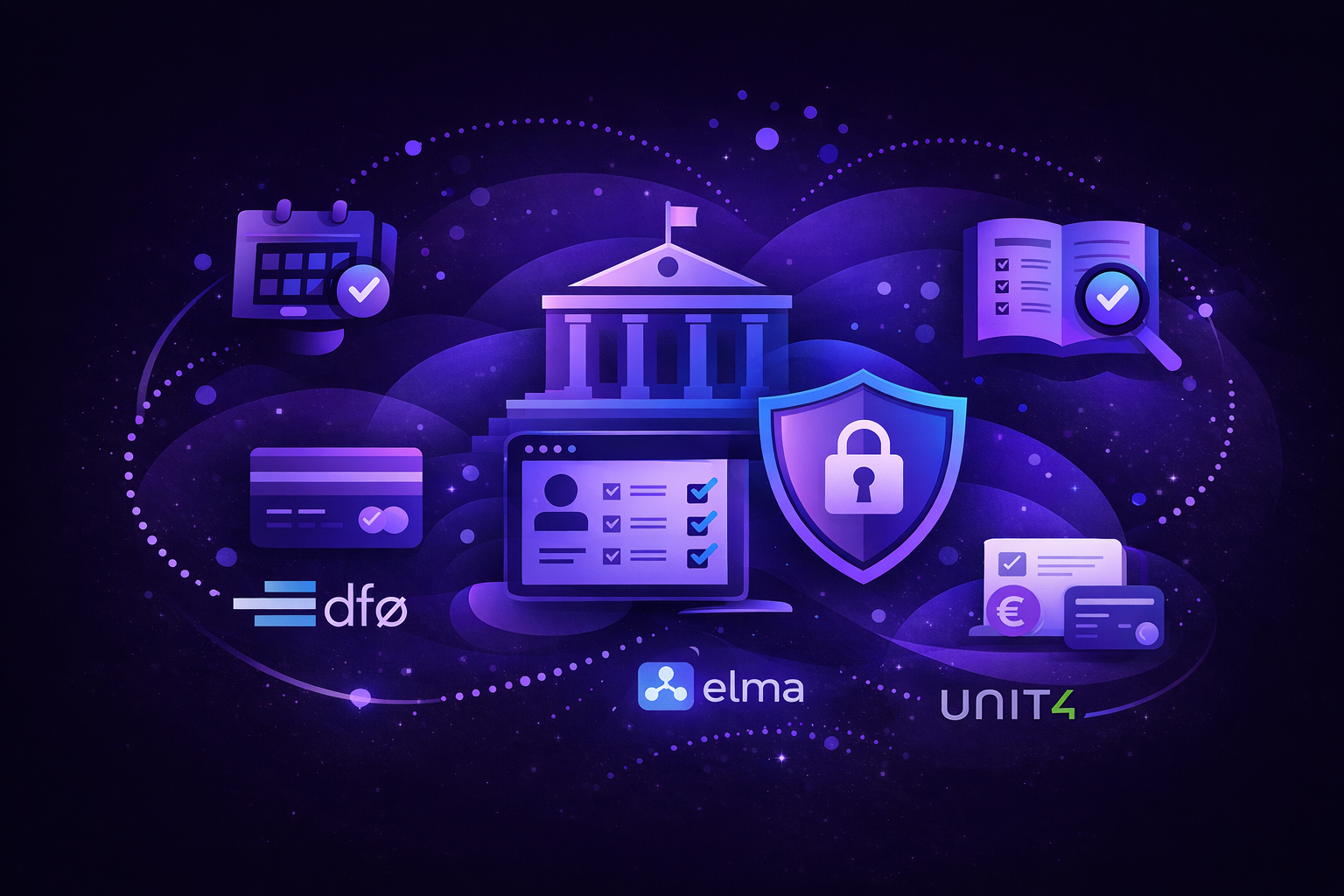
Many organizations operate with a separate LMS, a registration system, and often a standalone webinar solution. Individually, they work well. The challenge arises when public sector requirements demand that these systems operate seamlessly together.
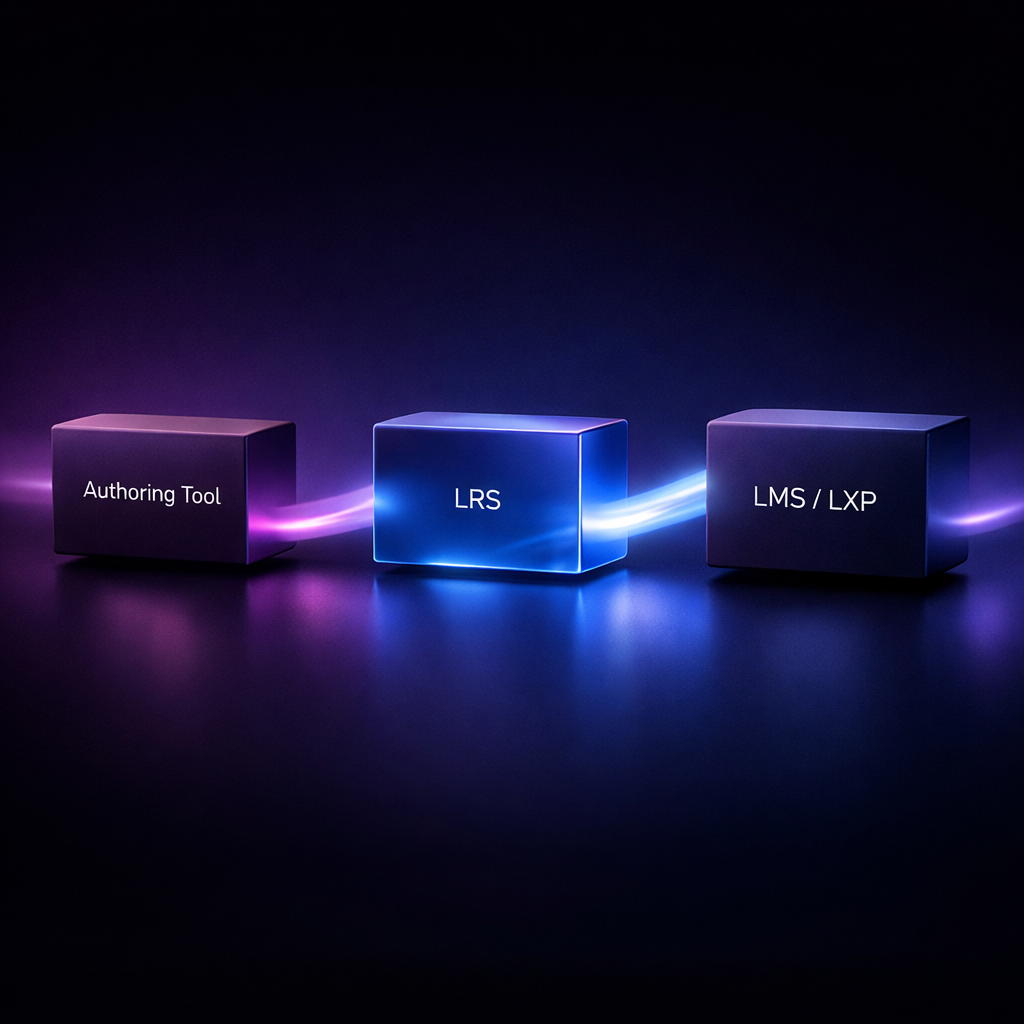
What are LMS, LXP, LRS and authoring tools — and why are these building blocks important when working with digital learning?